How-To - Run Multiple Diablo 2 Resurrected Instances On a Single PC
 - Disclaimer
- Requirements
- Pre-Setup Checklist
- Battle.net Behavior
- Client File Structure
- Using Process Explorer
- Closing Thoughts
⚠️ Disclaimer – Please Read Before ContinuingThis guide is intended for
educational and informational purposes only and is written for members of the Diablo II: Resurrected Low-Level Dueling (LLD) community.
Multi-account play (owning and logging into more than one
Battle.net account) is common within the D2R community, especially for activities such as muling, testing, buffing, and private play.
Nothing in this guide is intended to promote or encourage automation, input broadcasting, botting, account sharing, or any other behavior that violates Blizzard Entertainment's Terms of Service or Code of Conduct.This guide does
not provide step-by-step instructions to bypass game protections, defeat anti-cheat mechanisms, or manipulate the Diablo II: Resurrected client in unintended ways. Any tools mentioned (such as Windows system utilities) are discussed only in the context of
process management, performance monitoring, and client organization, not exploitation.
Ultimately,
you are responsible for how you use your accounts, your software, and your system. Blizzard's policies can change, enforcement may vary, and you should always ensure you are comfortable with the risks involved before proceeding.
If you are unsure whether something crosses the line, the safest rule is simple:
QuoteMultiple accounts is one thing. Automation and duplicated inputs is another.
Proceed smart, play fair, and keep the LLD scene healthy. 🍻
What This Guide Covers / Does NOT Cover| This Guide Covers | This Guide Does NOT Cover |
- Running multiple Diablo II: Resurrected clients using separate Battle.net accounts
- General Battle.net launcher behavior and limitations
- Organizing and identifying multiple D2R processes
- Basic Windows process management and monitoring
- Performance considerations when multiple clients are open
- LLD-specific use cases such as muling, testing, and buff characters
| - Automation, botting, or scripted gameplay
- Input broadcasting or duplicated keystrokes
- Account sharing or account services
- Step-by-step instructions to bypass game protections
- Anti-cheat evasion or exploit techniques
- Anything intended to provide unfair gameplay advantages
|
RequirementsBefore attempting to run multiple Diablo II: Resurrected clients on a single system, make sure you meet the following requirements. Skipping this section is the #1 cause of setup issues.
Hardware- Operating System: Windows 10 or Windows 11 (64-bit)
- CPU: Modern quad-core or better recommended (multi-client is CPU-heavy)
- RAM: 16 GB minimum recommended (32 GB preferred for smooth multitasking)
- Storage: SSD strongly recommended (NVMe preferred)
- GPU: Dedicated GPU recommended; integrated graphics may struggle with multiple clients
Accounts & Software- Two or more Battle.net accounts, each with a legitimate Diablo II: Resurrected license
- Battle.net Desktop App installed and up to date
- Diablo II: Resurrected fully updated
- Microsoft Sysinternals – Process Explorer (free Windows utility)
User Expectations- You must be comfortable managing multiple windows and alt-tabbing
- You should expect higher CPU, RAM, and GPU usage
- Background clients may require reduced settings to remain stable
- This setup is intended for manual control only
Important Notes- Each game client must be logged into a separate Battle.net account
- Running multiple clients on one system may increase crash risk on low-spec machines
- Laptop users may experience thermal throttling under sustained load
Required Tool – Process Explorer (Official Download)This guide references
Process Explorer, a free Windows utility developed by Microsoft as part of the Sysinternals suite. It is a legitimate, widely used diagnostic and process-management tool.
Official Download (Microsoft Sysinternals):https://learn.microsoft.com/en-us/sysinternals/downloads/process-explorerNotes:- Process Explorer does not need to be installed (portable executable)
- Always download Sysinternals tools directly from Microsoft
- Avoid third-party mirrors, repackaged installers, or modified versions
- Running as Administrator is recommended for full process visibility
Pre-Setup Checklist (Do This First)Before attempting to launch multiple Diablo II: Resurrected clients, take a few minutes to confirm the following. Skipping these steps is the most common cause of issues.
- Confirm each Battle.net account can launch D2R independently
- Log into each account one at a time
- Launch Diablo II: Resurrected and reach the main menu
- Close the game completely before testing the next account
- Fully close Battle.net when instructed
- Do not leave Battle.net running in the system tray unless explicitly required
- Verify it is not running via Task Manager if unsure
- Update Windows and graphics drivers
- Outdated GPU drivers can cause crashes when multiple clients are active
- Windows updates may include stability fixes for process handling
- Decide which client will be your "primary"
- Primary client: active play, higher graphics settings
- Secondary client(s): muling, buffing, testing, reduced settings
- Launch Process Explorer as Administrator
- Right-click → Run as Administrator
- Ensures full visibility of all D2R processes
Tip: If something does not behave as expected later in the guide, return to this checklist before troubleshooting further.
Battle.net Behavior & Common MisconceptionsBefore attempting to launch multiple Diablo II: Resurrected clients, it is important to understand how the
Battle.net launcher actually behaves and why certain settings are often misunderstood.
"Allow Multiple Instances of Battle.net"The
Battle.net setting labeled "Allow multiple instances of
Battle.net" applies to the
launcher itself, not to individual games.
- This setting allows more than one Battle.net application window to be open at the same time
- It does not automatically allow multiple Diablo II: Resurrected game clients to run simultaneously
- Enabling this option alone may appear to "change nothing" for D2R
This is expected behavior and not a misconfiguration.
Launcher vs. Game ClientBattle.net and Diablo II: Resurrected operate as separate components:
- Battle.net manages authentication, updates, and account login
- Diablo II: Resurrected runs as its own game process once launched
- The launcher setting does not override how the game client itself behaves
Because of this separation, successfully opening multiple
Battle.net windows does not guarantee multiple D2R clients will launch without additional considerations.
Why This Confuses So Many Players- The setting name implies game-level multi-client support
- Other Blizzard titles behave differently under the same setting
- Online guides often oversimplify or misrepresent what the option does
This guide intentionally clarifies this distinction to avoid false expectations and unnecessary troubleshooting.
Key TakeawayQuoteMultiple Battle.net instances ≠ guaranteed multiple game clients.
Understanding this difference upfront will make the rest of this guide significantly easier to follow.
Launcher State Is Critical – Read CarefullyBefore proceeding further, it is important to understand one key requirement that affects everything that follows in this guide.
Only One Active Battle.net Launcher Session Should Exist at a TimeWhen Diablo II: Resurrected is running, the
Battle.net launcher is no longer required to remain open. The game operates independently once it has reached the main menu.
For multi-client setups, it is essential that:
- The game client is allowed to run on its own
- The Battle.net launcher is not left active unnecessarily
Leaving the launcher open can interfere with additional client sessions and create confusion when managing multiple instances.
Built-In Launcher AutomationBattle.net includes an option that allows the launcher to automatically close after a game is launched. When enabled:
- The launcher exits once Diablo II: Resurrected is running
- The running game client remains unaffected
- Launcher session state stays clean and predictable
Using this option is recommended for multi-client environments to avoid overlapping launcher sessions.
Why This MattersQuoteProcess management tools only interact with game processes, not the Battle.net launcher itself.
For this reason, launcher behavior must be configured and understood
before any process visibility or management steps are introduced later in this guide.
If the launcher state is incorrect, later steps will appear confusing or ineffective.
Once launcher behavior is properly understood and controlled, the purpose of Process Explorer becomes clear and logical rather than mysterious.
Client File Structure – One Copy Per Planned InstanceBefore attempting to run more than one Diablo II: Resurrected instance on a single system, it is important to understand how the game client files are structured and accessed.
One Client Instance = One Complete Game DirectoryEach Diablo II: Resurrected instance you intend to run should have its
own complete copy of the game files. These copies must be:
- Identical to the original Diablo II: Resurrected installation
- Fully self-contained
- Separated into their own directories
In practical terms, this means:
QuoteIf you plan to run two instances, you should have two full D2R directories.
If you plan to run three instances, you should have three full D2R directories.
Why This MattersDiablo II: Resurrected expects exclusive access to certain files, resources, and runtime states while it is running. Sharing a single game directory across multiple active instances can lead to:
- File access conflicts
- Unexpected crashes or freezes
- Launcher or client instability
- Inconsistent behavior between instances
Using separate, identical copies of the game files helps ensure that each running instance operates independently and predictably.
What This Does NOT Mean- This does not involve modifying game files
- This does not involve altering executables
- This does not change gameplay or client behavior
- Each copy must remain an unmodified Diablo II: Resurrected installation
Important ReminderQuoteEach client copy should always be kept up to date and consistent with the current Diablo II: Resurrected version.
Later sections of this guide focus on managing running clients and system resources, not altering or customizing the game itself.
Locating & Copying Your Diablo II: Resurrected Install FilesBefore creating additional client copies, you must first locate your existing Diablo II: Resurrected installation directory.
Default Install LocationOn most Windows systems, Diablo II: Resurrected is installed in one of the following locations:
- C:\Program Files (x86)\Diablo II Resurrected
- C:\Program Files\Diablo II Resurrected
If you are unsure, you can confirm the install path by:
- Opening the Battle.net launcher
- Selecting Diablo II: Resurrected
- Clicking the gear icon (Options)
- Choosing "Show in Explorer"
Creating Additional Client CopiesTo create additional instances, you should make a
direct copy of the entire Diablo II: Resurrected folder.
- Right-click the existing Diablo II: Resurrected folder
- Select Copy
- Paste the folder into the desired location
This is a standard Windows copy operation. No files should be skipped, altered, or excluded.
Recommended OrganizationFor clarity and long-term sanity, it is strongly recommended to:
- Keep all D2R client folders together in a single parent directory
- Use clear, descriptive folder names
Example:
QuoteDiablo II Resurrected – Main
Diablo II Resurrected – Account2
Diablo II Resurrected – Account3
Important Notes- Do not move or delete files inside the copied folders
- Do not mix files between client directories
- Each folder should remain an exact copy of the original installation
Once your client folders are properly organized, you are ready to proceed to the next steps of managing and launching multiple instances.
Using Process Explorer – Identifying Diablo II: Resurrected InstancesThis section covers the basic use of Microsoft Process Explorer as a
process visibility and management tool. No game files are modified, and no automation is involved.
What Process Explorer Is Used ForProcess Explorer allows you to view detailed information about running processes that is not available in standard Windows tools.
In the context of Diablo II: Resurrected, it is useful for:
- Seeing which D2R processes are currently running
- Identifying which client instance belongs to which game directory
- Monitoring CPU and memory usage per instance
- Confirming that a game client is running independently of the launcher
Launching Process Explorer- Run Process Explorer as Administrator
- This ensures full visibility of all active processes
Once open, Process Explorer will display a live list of processes currently running on your system.
Finding Diablo II: Resurrected Processes- Look for processes named D2R.exe or Diablo II Resurrected
- Multiple entries indicate multiple active instances
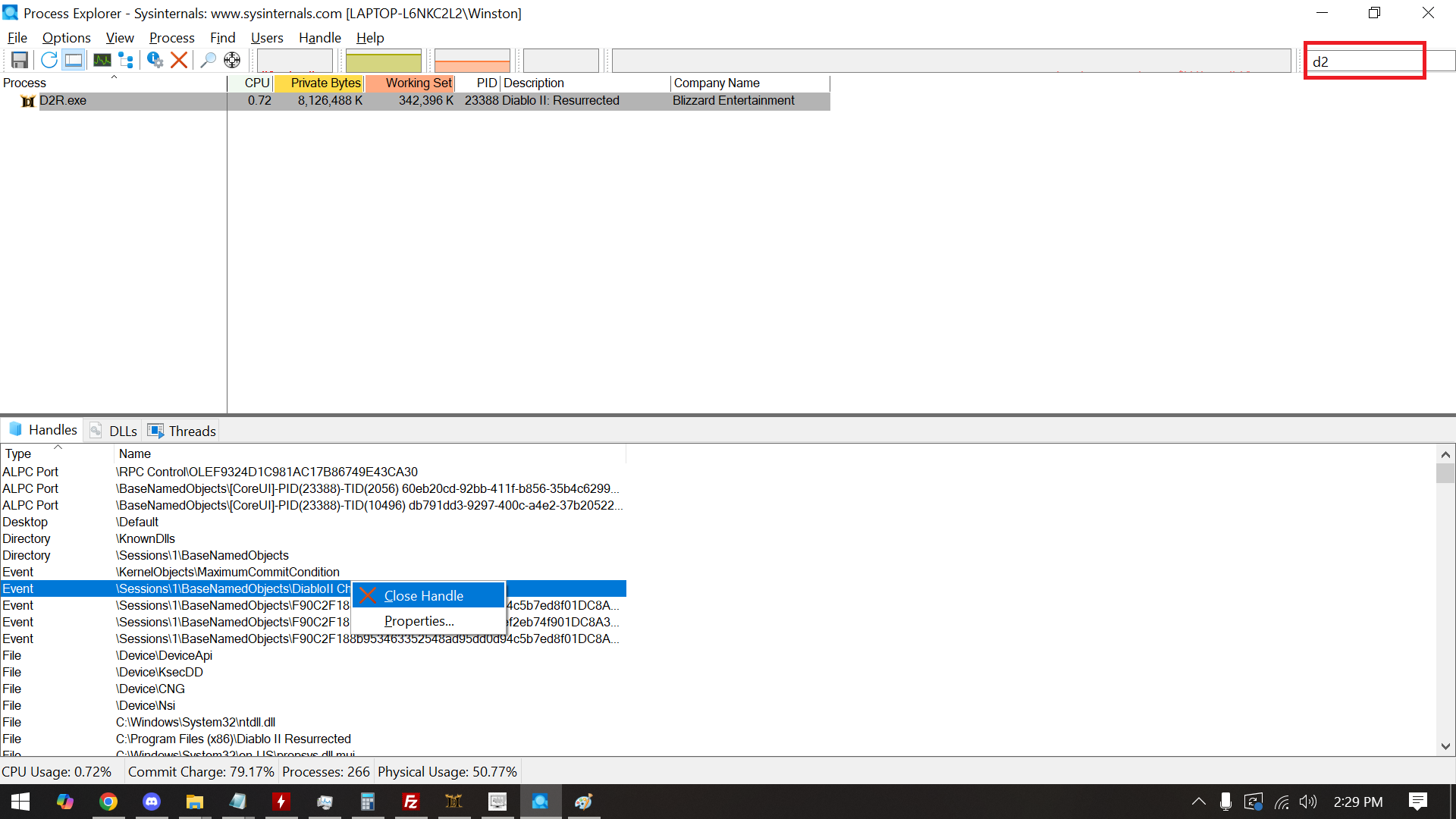
- Once located, select it. And below you will see handles. You will be looking for the Look for other Instances handle
- Select it, right click -> Close Handle
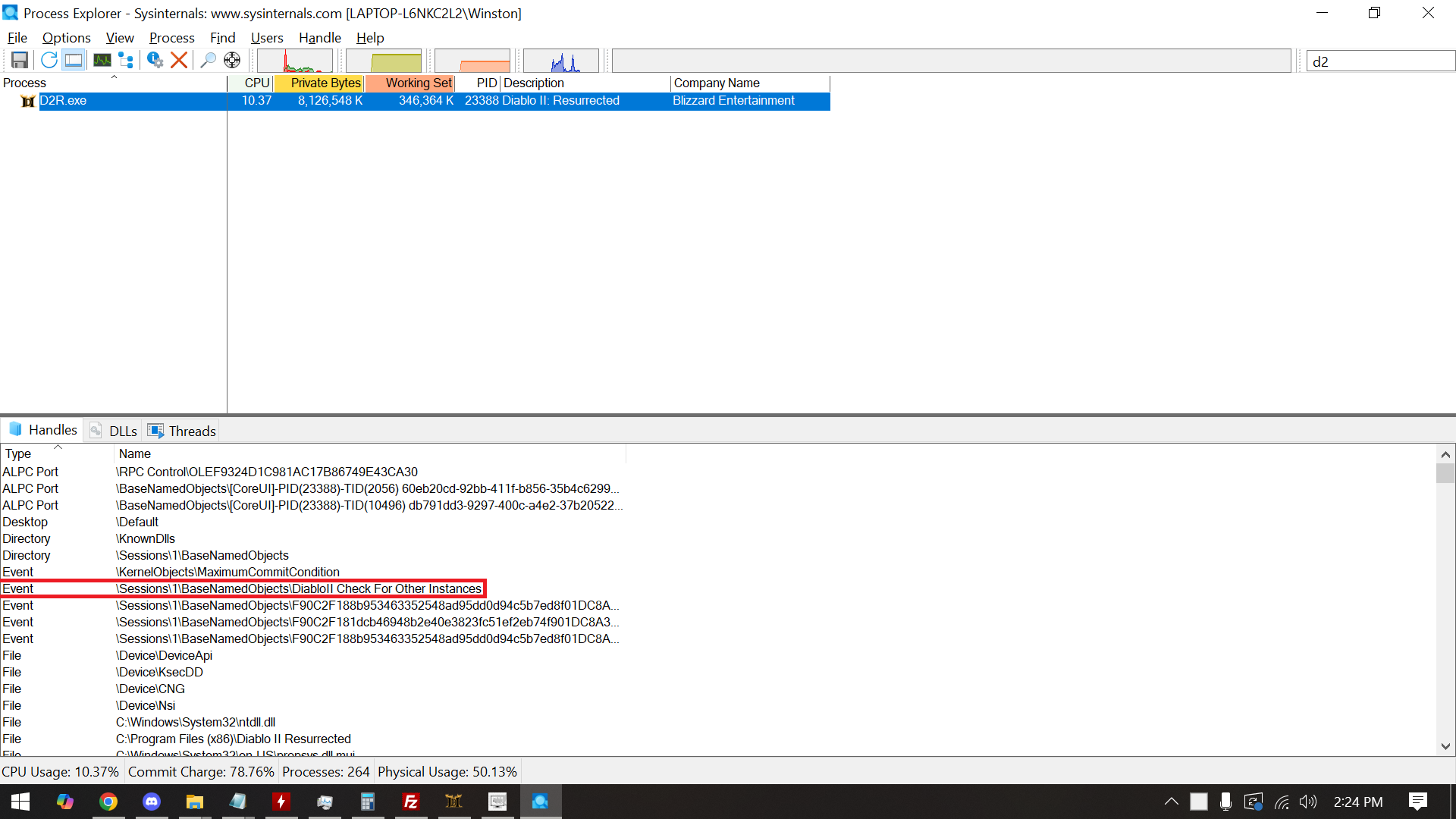
Repeat this for every instance you plan on running. Each entry represents a separate running game client.
Identifying Which Instance Is WhichTo differentiate between multiple running instances, Process Explorer provides several useful columns:
- Image Path / Command Line – shows which folder the executable was launched from
- CPU – indicates which instance is actively being used
- Private Bytes / Working Set – shows memory usage per instance
The
Image Path is especially helpful when multiple client directories are in use, as it clearly shows which D2R folder each instance originated from.
General Process ManagementProcess Explorer can also be used to:
- Observe how much system load each client generates
- Confirm that inactive clients are behaving as expected
- Keep track of multiple running instances without confusion
Important ReminderQuoteProcess Explorer is a visibility and management tool. It does not control gameplay, input, or automation.
It should be used to understand what is running on your system and to help keep multi-client setups organized and stable.
Once you are comfortable identifying active instances, managing multiple clients becomes significantly more straightforward.
Closing ThoughtsThis guide was written to document real-world behavior, clarify common misconceptions, and reduce confusion around multi-client setups in Diablo II: Resurrected.
It is not meant to encourage reckless experimentation or misuse of tools. Rather, it exists so experienced players can better understand what is happening on their own systems and make informed decisions.
Multi-client environments require patience, system awareness, and personal responsibility. If something feels unclear or unstable, step back, reassess, and simplify before proceeding further.
Knowledge is a tool. How it is used is up to the individual.
Use at Your Own DiscretionThe techniques and concepts discussed in this guide rely on user-controlled system behavior and third-party utilities provided by Microsoft.
- Software behavior may change with updates
- System configurations vary from user to user
- What works in one environment may not behave identically in another
By choosing to apply any information contained here, you acknowledge that you are doing so at your own discretion and risk.
If you are not comfortable with advanced system tools or process-level visibility, this guide may not be appropriate for your use case.
Moderator NoteThis guide is provided for educational purposes and community documentation.
Posts requesting automation, scripts, macros, account services, or step-by-step instructions beyond what is written here may be removed at moderator discretion.
Please keep discussion focused on understanding behavior, troubleshooting responsibly, and maintaining a healthy Low-Level Dueling community.
Thank you for contributing constructively.

 2RLLD.COM